Working Environment
After logging in to JupyterHub.nrw, you can select the required resources (e.g., CPU and RAM) as well as a suitable working environment on the Spawn page.
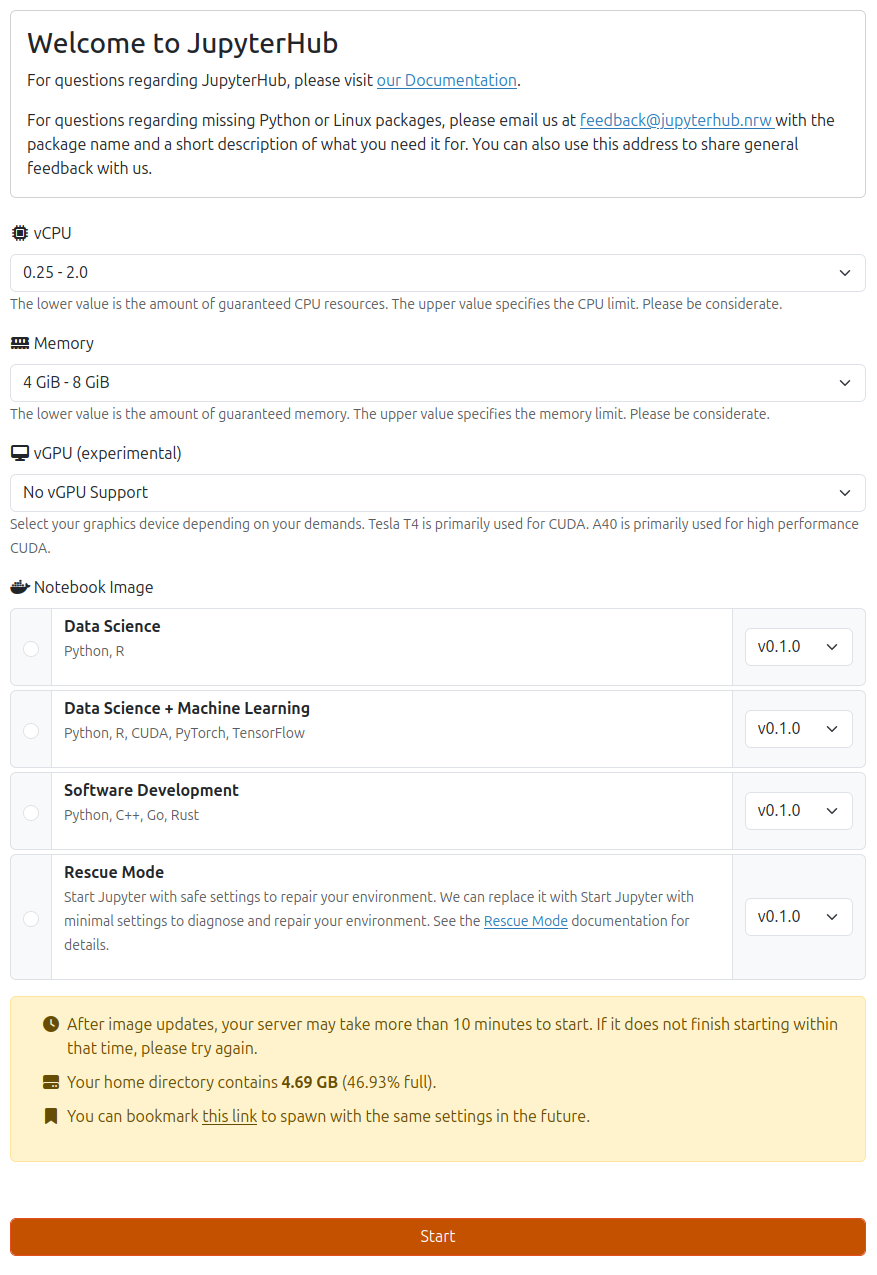
Resource Quotas
Resource quotas depend on the user’s status and user group. Higher resource quotas of up to 16 virtual CPUs (vCPUs), 64 GB of RAM, and additional graphics processing units (GPUs) can be requested through our support-Team. Alternatively, High Performance Computing (HPC) can be used, if available. Members of the University of Münster can use the PALMA cluster for this purpose. Further information can be found in the PALMA documentation.
Supported Environments (Notebook Images)
Various configurations (notebook images) are available for different purposes. Depending on the image you choose, different programs and packages are preinstalled. The following notebook images are currently available:
Data Science
A data analysis and visualization environment.
- Python: NumPy, Pandas, SciPy, Matplotlib, Seaborn, Bokeh, Plotly, scikit-learn, statsmodels
- R: RStudio, Shiny Server, tidyverse ecosystem
- Tools: VS Code Server, OpenRefine (data cleaning), full LaTeX stack
Data Science + Machine Learning
Extends the Data Science image with GPU-accelerated machine learning frameworks.
- Deep Learning: PyTorch, TensorFlow, JAX
- GPU Support: CUDA 11.8, cuDNN
Suitable for deep learning, neural networks, and compute-intensive model training.
Software Development
A multi-language development environment.
- C/C++: GCC 13, Clang 18, Xeus Cling (interactive kernel), CMake, GoogleTest
- Rust: Full toolchain with Jupyter kernel
- Go: Go 1.24 with Gophernotes kernel
- Java: OpenJDK 17
- Scheme: Calysto Scheme kernel
- Tools: VS Code Server, full LaTeX stack, SSH tools
Rescue Mode
A minimal recovery environment. Use it when your JupyterLab environment does not start, for example due to broken packages or corrupted configuration files. Provides basic file management tools to inspect and repair your home directory. See Rescue Mode for details.
Starting the Server
Once you have selected the resources and the image, you can start the server. It may take a while for the JupyterLab environment to be ready.
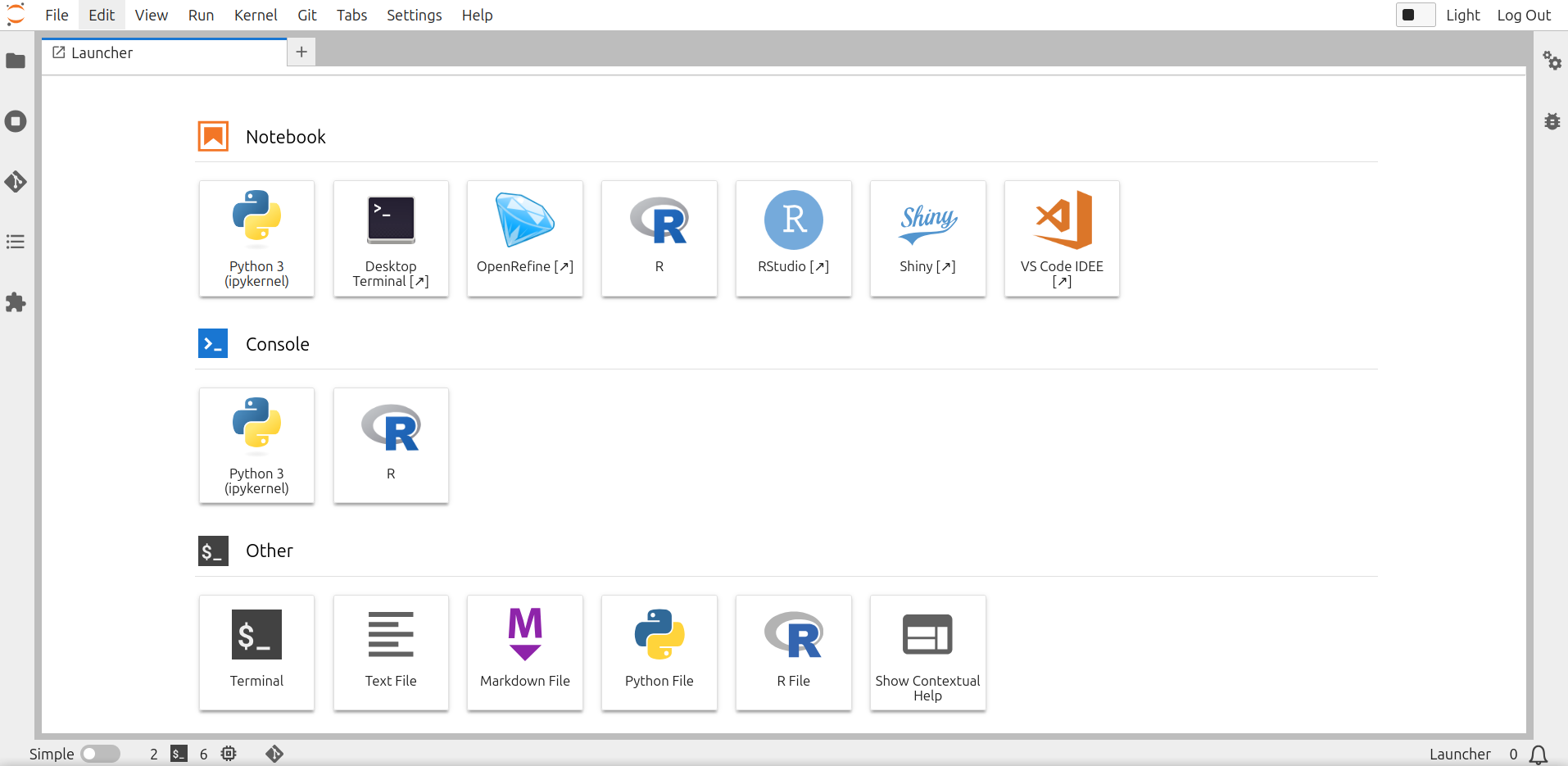
Changing the Working Environment
If you want to start a different image, you must first stop the server and then restart it. To do this, click File > Hub Control Panel > Stop My Server in JupyterLab. Then click Start My Server.
Further Information
For information on installing specific packages, see the Custom Environments section.
Useful links for using JupyterLab and Jupyter Notebooks